If there’s one upgrade that almost universally transforms a home office, it’s adding a second monitor. The productivity research is overwhelming: dual monitor setups make you faster, more focused, and less mentally fatigued than working on a single screen.
Why Dual Monitors Boost Productivity
- Jon Peddie Research found that dual monitors increase productivity by an average of 20–30%
- University of Utah found that workers completed tasks 29% faster and with 17% fewer errors
- Microsoft Research found workers spent 8.5% of their time just managing windows on a single screen
The productivity gains come from one fundamental change: you can see more information at once without switching contexts.
What You Need for a Dual Monitor Setup
1. Two Monitors
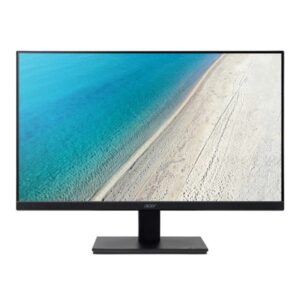
Size: 24-inch monitors are the most popular for dual setups. 27-inch monitors work beautifully if you have a wider desk (140cm+).
Resolution: 1080p (Full HD) minimum. 1440p (QHD) is noticeably sharper on 27-inch screens.
Panel type: IPS panels offer the best colour accuracy and viewing angles for office work.
2. A Monitor Arm (Highly Recommended)
A dedicated monitor arm lets you position each screen at the perfect height, distance, and angle. It frees up desk space and allows easy adjustment.
Home Sweet Office stocks excellent options: Artiss Dual Monitor Arm, Activiva Dual Monitor Arm, and Gas-Spring Monitor Arms.
3. Cables and Connectivity
HDMI, DisplayPort, or USB-C depending on your laptop’s outputs. If your laptop has only one video output, a USB-C docking station adds extra display ports.
4. Keyboard and Mouse
A separate wireless keyboard and mouse are essential when using external monitors with a laptop.
How to Set Up Dual Monitors Ergonomically
Monitor Placement
Option A: Symmetric (Equal Use) — Angled inward in a gentle V-shape, inner edges in front of your nose.
Option B: Primary + Secondary — Primary monitor centred on your body, secondary angled toward you from one side. Most experts recommend this option.
Height
Top of both monitors at or slightly below eye level.
Distance
Approximately one arm’s length away (50–70cm).
Step-by-Step Setup Guide
- Attach the monitor arm to your desk
- Mount both monitors on the arm
- Connect cables (HDMI, DisplayPort, or USB-C)
- Power on and detect displays
- Configure display arrangement in Settings
- Set resolution and scaling
- Adjust ergonomic position
- Test and refine after 30 minutes of work
Software Tips
- Use Windows Snap (Win + Arrow keys) to snap windows to each half of a screen
- Designate screen roles — communication on one, primary work on the other
- Put your taskbar on both screens via Settings > Personalisation > Taskbar
- Use virtual desktops in combination with dual monitors for ultimate organisation
Frequently Asked Questions
Do dual monitors really increase productivity?
Yes. Multiple independent studies have found productivity gains of 20–30% across a range of office tasks.
Can my laptop support two external monitors?
Most modern laptops with a dedicated GPU or recent integrated graphics can support two external displays. Check your laptop’s specifications or use a USB-C docking station.
What size monitors are best for a dual setup?
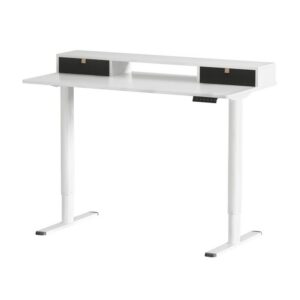
24-inch monitors fit on a standard desk (120–140cm). 27-inch monitors require a wider desk (140cm+).
Do I need a monitor arm?
Highly recommended. A dual monitor arm frees desk space, allows precise ergonomic positioning, and creates a cleaner setup.
How do I stop neck pain from dual monitors?
Ensure your primary monitor is directly in front of you, both monitors at eye level, and about an arm’s length away. A monitor arm makes achieving the correct position much easier.
Build your dual monitor setup at Home Sweet Office. Shop dual monitor arms, sit-stand desks wide enough for dual screens, and HP laptops with multi-display support. Free shipping over $150.